
SEO is mostly about expertise, but also about which tools you use to showcase that expertise.
Of course, there are plenty of tools for every type of need in everyday SEO tasks, from keyword research to ranking, crawling, reporting, and so on.
But today, I will talk from my personal experience and the way I do my work, about Chrome tools that simply help you work more precisely, more confidently, and of course, faster.
I’m not going to present each tool the same way they are already presented in the other 50,000 blog posts out there. Instead, I will go straight to the specific needs in a technical audit and show the best Chrome extension option for each basic need.
Just to clarify, I’m not going into the category of famous extensions from tools like SemRush or Ahrefs, which make our work easier through their Chrome add-ons, but rather stand-alone tools, as I mentioned above, that serve the primary needs of any SEO professional, especially those focusing on technical SEO.
Table of Contents
Instantly Check and Trace Redirects
One of the first things you need to look at when performing an audit, or when you want to see how certain URLs behave, is whether they redirect.
Why should you check if a URL redirects?
The reasons are numerous in SEO: to see if there are multiple redirect chains that could cause authority loss, to check whether HTTP redirects to HTTPS, to confirm if the redirect goes to the correct domain version (either non-www or www), or to verify whether URLs with or without a trailing slash redirect correctly, and so on.
The ideal tool for this specific task, in my case, is Redirect Path.
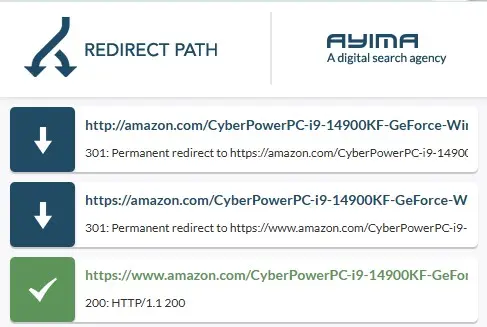
You can see the actual redirect, its type (301, 302, JS, etc.), the number of redirect hops until the final link and its status, detect any infinite redirect loops, or see through its inactive color indicators that no redirection exists.
Check Indexing and Robots Tags Effortlessly
To quickly and visually check page patterns and understand their indexing status, you need an extension that shows you, the moment you open a page, details such as: is it indexed? Is it index, follow or index, nofollow? Is it noindex, or maybe noindex, follow?
Why is it important to know a page’s robots and indexability settings?
There are multiple reasons. For example, to check whether pagination pages are indexable (which they should always be), or to verify whether a page where you’ve purchased a paid link for SEO purposes is marked as “index, nofollow”. That would mean you should get your money back because you’ve just been scammed. You can also instantly detect if important pages are non-indexable.
The tool that has helped me for years without giving me any headaches and that’s always reliable is Seerobots.
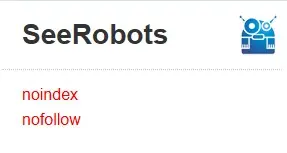
Simple and straight to the point, it shows you exactly what you need to know. For example, whether a page has:
<meta name="robots" content="index, follow">
<meta name="robots" content="index, nofollow">
<meta name="robots" content="noindex, follow">
<meta name="robots" content="noindex, nofollow">
See If Your Canonicals Are Pointing the Right Way
When checking a website, you must always be able to instantly see whether a specific page, whether you reached it intentionally, by accident, or as part of a pattern, canonicalizes correctly.
Why are canonical tags so important?
It’s simple: if a page you want to be indexable has a canonical pointing to another page, there’s clearly an issue that needs fixing.
For example, let’s take pagination. Every pagination page should be self-canonicalized, not because it adds SEO value directly, but to show search engines the diversity of products or content available. On many e-commerce sites, there are plenty of cases where pagination pages incorrectly canonicalize to their parent category, which is completely wrong.
The tool I’ve been using for a very long time to help me with this is Inspect Canonical.
With it, you can easily see if a page has a self-canonical, if it canonicalizes to another URL, or if it lacks a canonical altogether. It’s easy to interpret, as it visually displays the canonical status right in your toolbar, using color indicators.
Instantly View Meta Tags, Headings, and On-Page Details
The most important on-page SEO elements, such as meta titles and headings, should be visible instantly without having to dive into the source code.
For these purposes, I use SEO META in 1 CLICK.
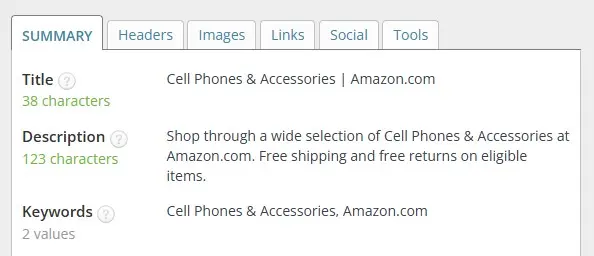
This extension falls under the general SEO utilities category, as it doesn’t only show the meta title, H1 heading, and meta description of a page.
It also lists all the headers, all images and their corresponding alt texts, every internal and external link found in the source code, and the Open Graph tags for the page.
Detect Nofollow Links Directly on the Page
It’s absolutely necessary to be able to identify, at any moment, which links on your page are marked as nofollow.
Having this detail at hand allows you to instantly see if you or your platform mistakenly marked important links as nofollow, check which external links (especially pattern-based ones) on a client’s site are nofollow or dofollow, and verify during link building whether webmasters actually posted your links as dofollow or not.
The best and most stable tool for this purpose is Nofollow.

Once enabled, nofollow links appear on the page with a red dashed outline, making them stand out immediately.
Check Your Site’s Rendering Without JavaScript
Nowadays, as more and more websites rely heavily on JavaScript, it’s essential to see how a webpage and especially a page pattern appears when JS is disabled.
Viewing how a page renders with JavaScript turned off helps you ask the right questions:
– Can Google see all the content on this page?
– Can the FAQ section built in JS be read by search engines?
Then, of course, you move forward with testing whether search engines can actually crawl and read the page.
The tool I use for this purpose is Web Developer.
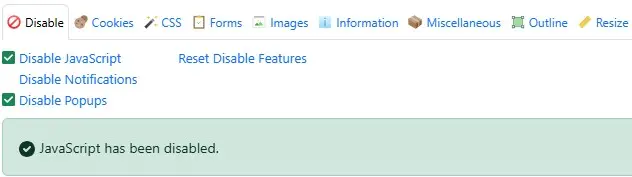
I should mention that I personally use this tool only for this specific reason, even though it’s extremely powerful. You can disable not just JavaScript, but also notifications, pop-ups, and cookies. You can even view image alt texts and image dimensions directly on the page in real time. It truly lives up to its name, being a complete tool for web developers. But, as I said, the way I use it is much simpler.
Instantly Count Words in Any Text
Almost every day you come across a text where you can’t really tell by eye how many words it has, and you just end up guessing.
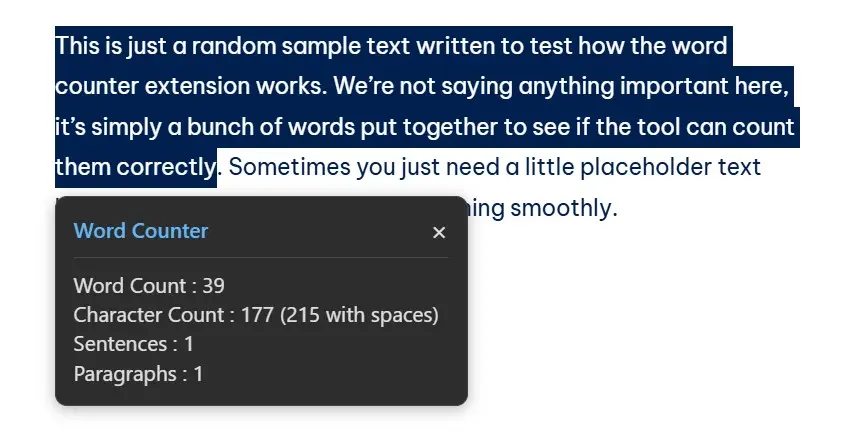
To stop guessing and instantly see the exact word count of any text, Word Counter is the perfect extension.
Over time, I’ve tried several similar extensions, but unfortunately, most of them became deprecated and stopped working.
For now, it’s exactly what I need.
It’s super easy to use: just select the text you want to count, and it instantly displays the number of words.
Copy Texts or URLs from Anchors
One of the most useful extensions is the one that can extract URLs from anchors, menus, or any link text found on a page.
Why do you need to extract URLs and anchors?
If you want to do keyword research and don’t want to manually write down all the category names from a menu, subcategories, or even product names from a page, you’ll need a tool that can extract anchors automatically.
If you want to crawl certain URLs from a page to check their status or meta titles, you’ll also want to be able to do it instantly with a single extension.
One such tool I used to rely on was Link Clump, but it stayed deprecated for quite a while, and I couldn’t find anything similar. So I created my own tool to extract anchors and URLs, called Magic Anchor & URL Grabber.

It’s very easy to use: copy the anchor text instantly by pressing Z + Left Click (hold Z and click), and copy the URL behind the anchor by pressing U + Left Click (hold U and click). You can also bulk select either anchors or URLs.
It’s tested on Windows (not on Mac yet), and personally, it hasn’t disappointed me once.
Instantly Test Schema Markup and Structured Data
How many times have you been too lazy to open Google’s Rich Results Test or schema.org just to check the schema markup of a page?
I’ve been there a million times. Every single time, I’d reluctantly open five tabs at once for different URLs just to see what schema each had.
Honestly, to my shame, it never even crossed my mind that there could be a tool that takes you directly to those sites. I discovered Rich Results – Structured Data Test Plugin quite recently, and I’ve been using it constantly ever since.
It does exactly what it should: it takes you straight to the Schema Validator site with your URL already entered and ready for testing.
Mapping the Web Technologies Used
Last but not least, I use Wappalyzer.
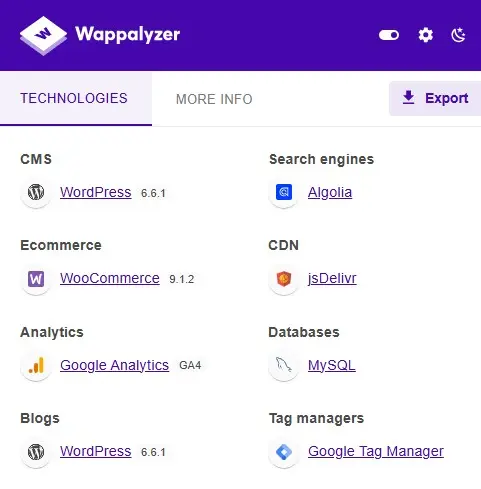
It’s an extremely useful extension that, with a single click, shows a wide range of interesting details. You can instantly see which frameworks are being used (like React, Angular, or Laravel), what web server runs in the background (Apache, Nginx, LiteSpeed), or what programming language powers the site.
Moreover, it can tell you if a site is built on an e-commerce platform such as Shopify, WooCommerce, or Magento, what hosting services it uses (Amazon AWS, Google Cloud, DigitalOcean), and even what payment systems are integrated, like Stripe or PayPal.
If you’re curious about the marketing side, Wappalyzer also shows tracking tools (Hotjar, Facebook Pixel, Google Tag Manager), email marketing platforms (Mailchimp, Klaviyo), and even advertising or live chat systems (Intercom, Tawk.to).
I hope this was helpful and that I gave you at least two or three tool ideas you didn’t already know about.